Serendie UI Plugin
Last updated 5/14/2026
Features
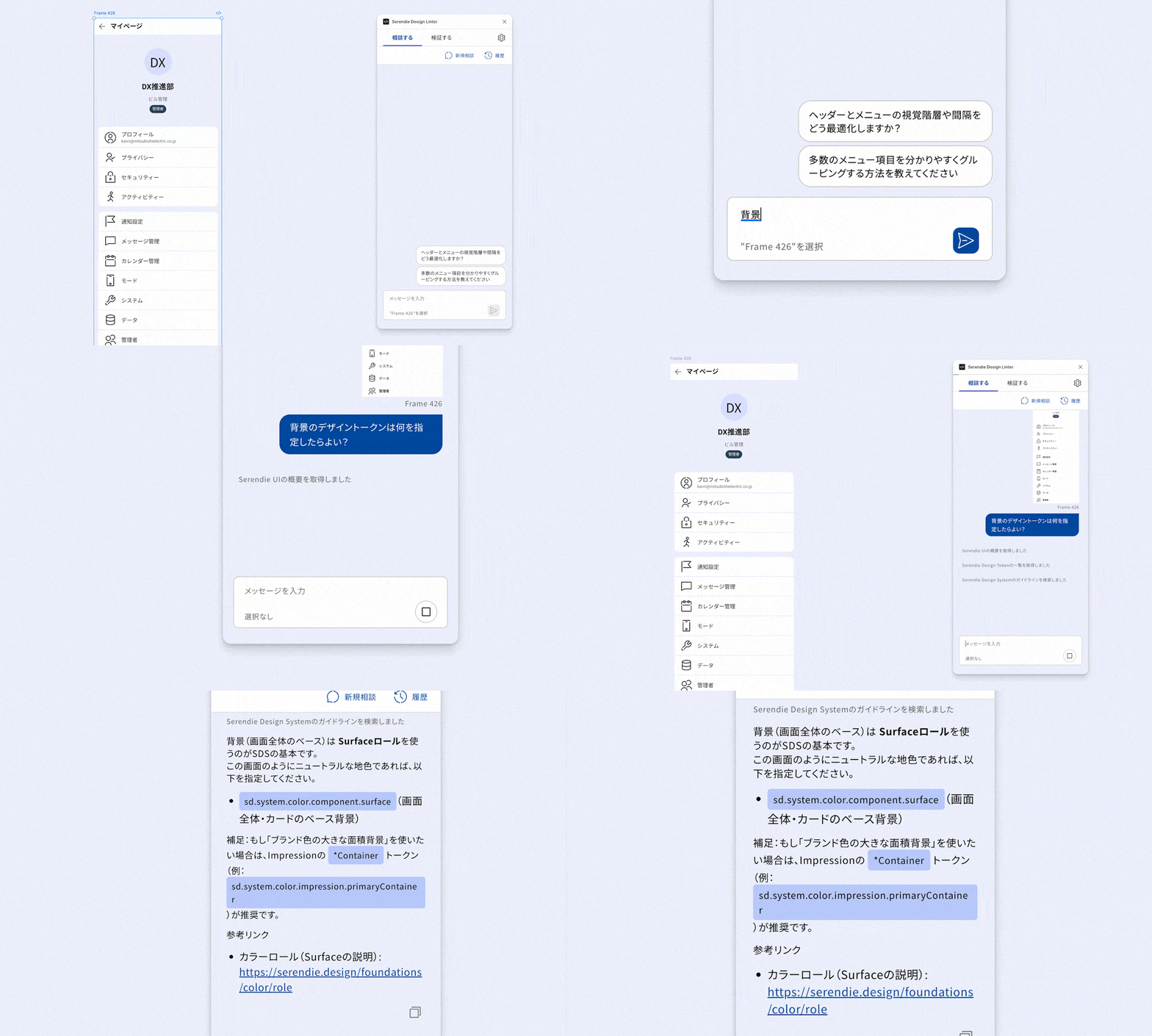
AI Consultation
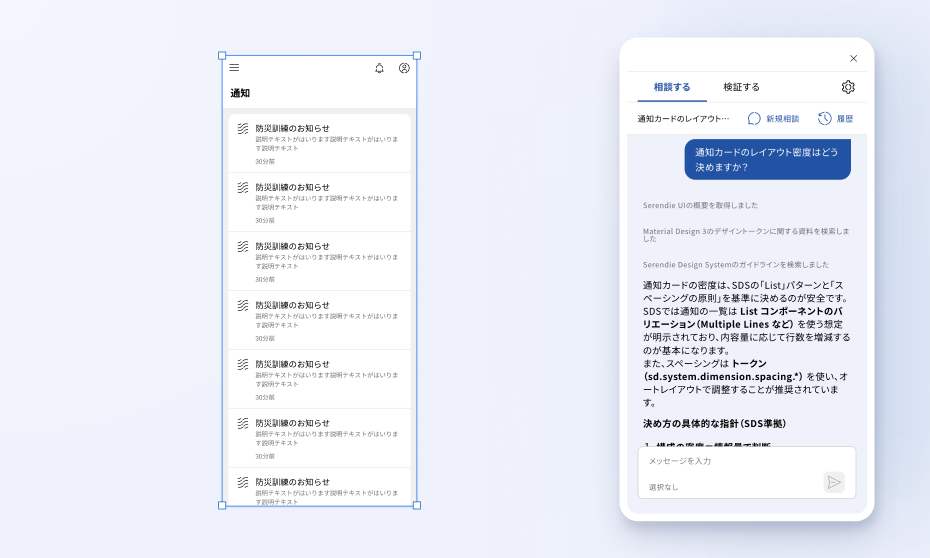
You can consult about UI component design using the Serendie UI Kit through a chat interface.
- “Which design token should I use for the text on this screen?”
- “How should I use the different properties of the Button component?”
- “Can you review the component I’m working on?”
- “I’d like help with naming this component.”
- “What properties does a Slider component need? Please research other design systems.”
These are typical questions. The AI answers by referencing Serendie Design System guidelines and assets. Since Figma context such as the currently selected frame is shared with the AI, you can ask questions right away without explaining the situation in detail.
For component design, it’s also important to follow UI Kit standards beyond Serendie UI. Serendie UI Plugin provides advice on specific improvements and best practices by referencing related design systems such as Material Design 3 and Ark UI.
Validation & Fix
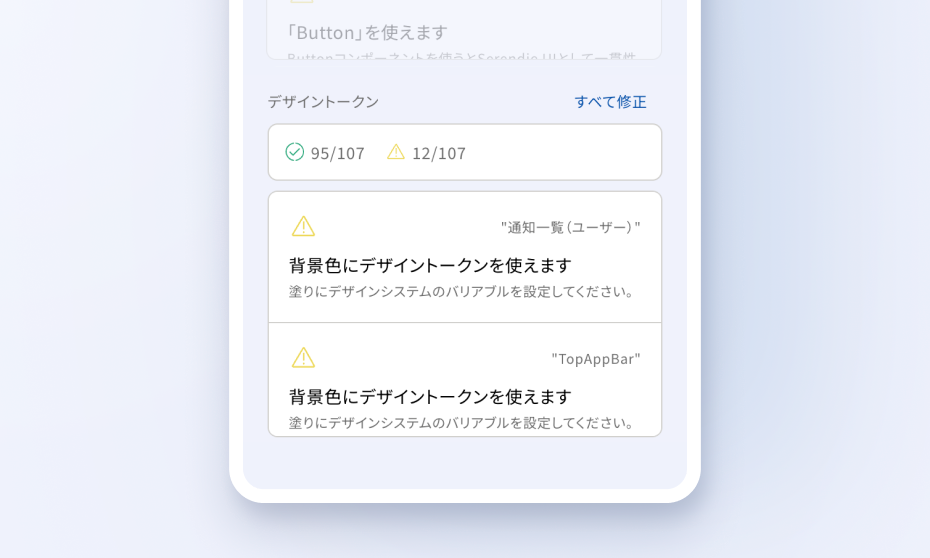
Serendie UI is built on design token rules such as color roles and typography roles. Following these rules ensures accessibility, including proper contrast ratios. The validation feature checks whether selected elements in Figma follow design token rules.
It also analyzes the selected screen design and detects areas where Serendie UI components could be used.
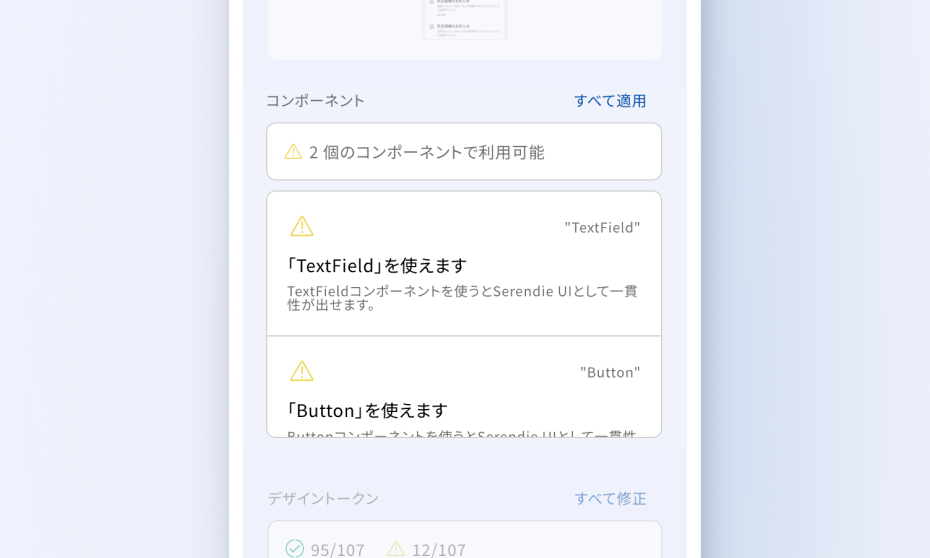
Detected items can be auto-fixed in bulk. Since the accuracy of fixes varies depending on the complexity of the target screen, use them as a reference.
How to Use
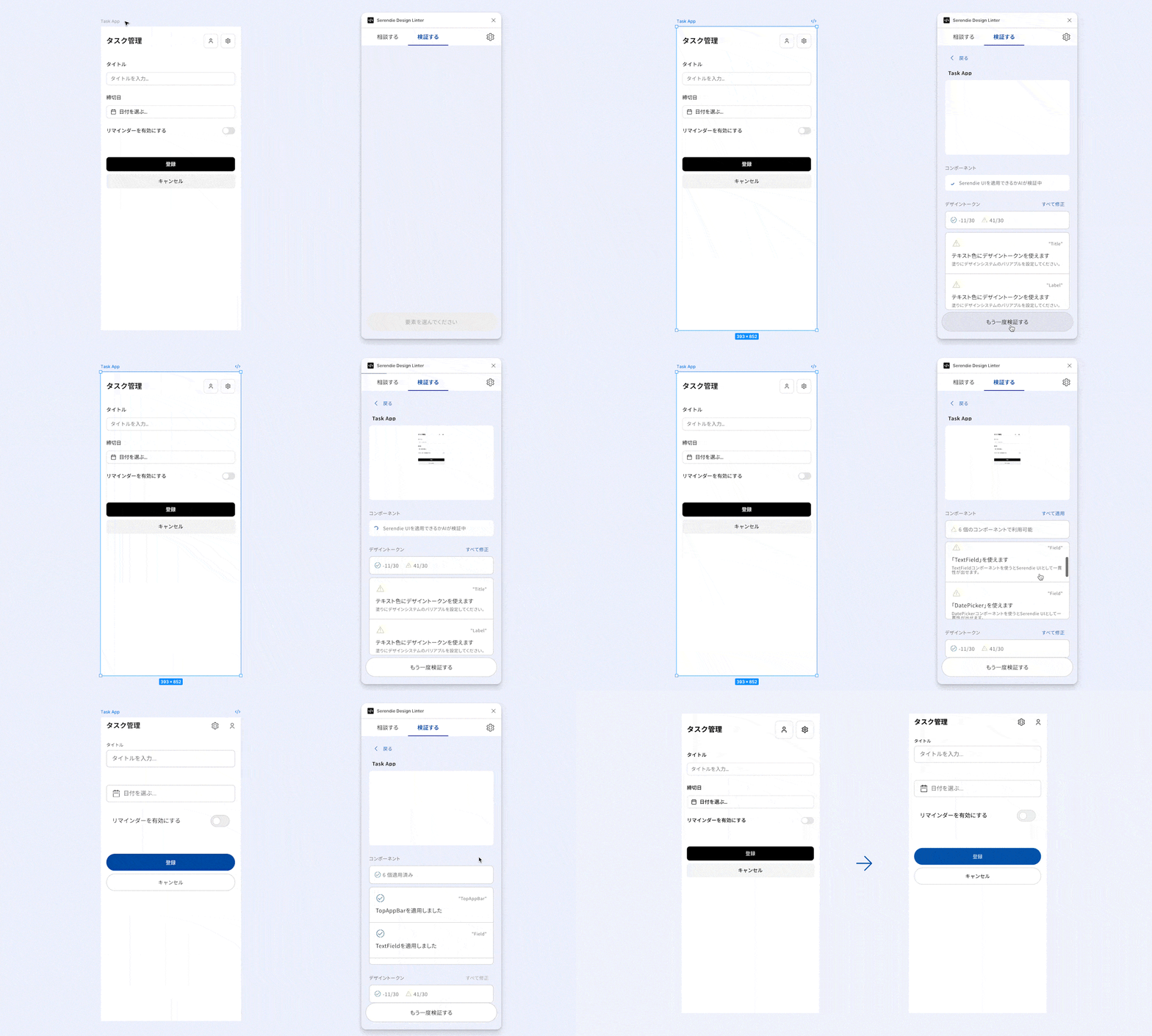
Consult the AI
- Select the target element in Figma (it is shared with the AI as context)
- Choose from suggested questions or enter your own
Validate & Fix Designs
- Select the element you want to validate in Figma
- Click the “Validate” button to display design token validation results
- Detect areas where components can be used (AI analysis may take time depending on screen complexity)
- Click “Apply Components” or “Fix Design Tokens” to auto-fix
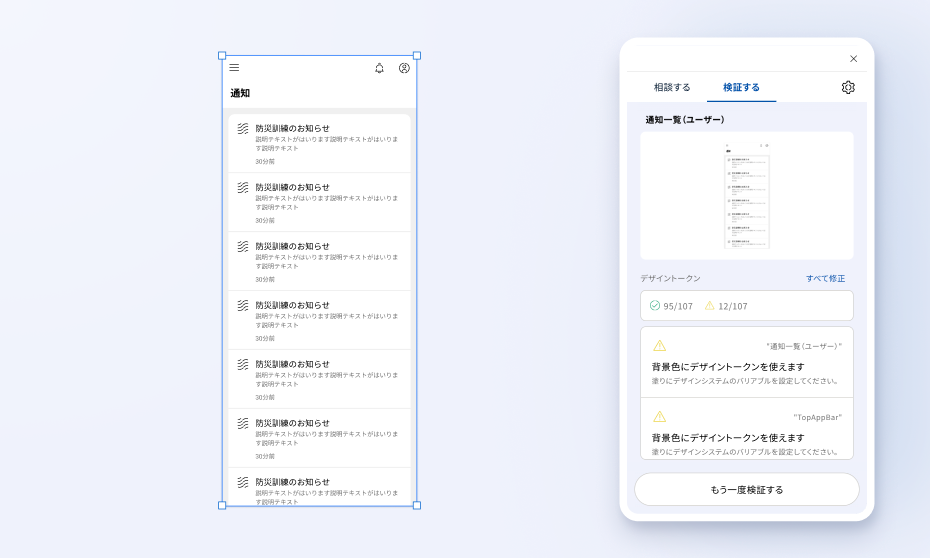
Validation results are displayed with three types of icons:
- Error: Parts that don’t follow design token rules and need correction
- Warning: Parts that need review, such as missing design token settings
- Normal: No issues found
Click on a validation result item to select the corresponding element in Figma, making it easy to locate the issue.